Every GitHub account.
The right key. Every time.
Vexo manages SSH keys, GitHub profiles and commit authors on your desktop, so work code never ships from your personal account again.
Free and open source · v0.1.1 · macOS, Windows and Linux
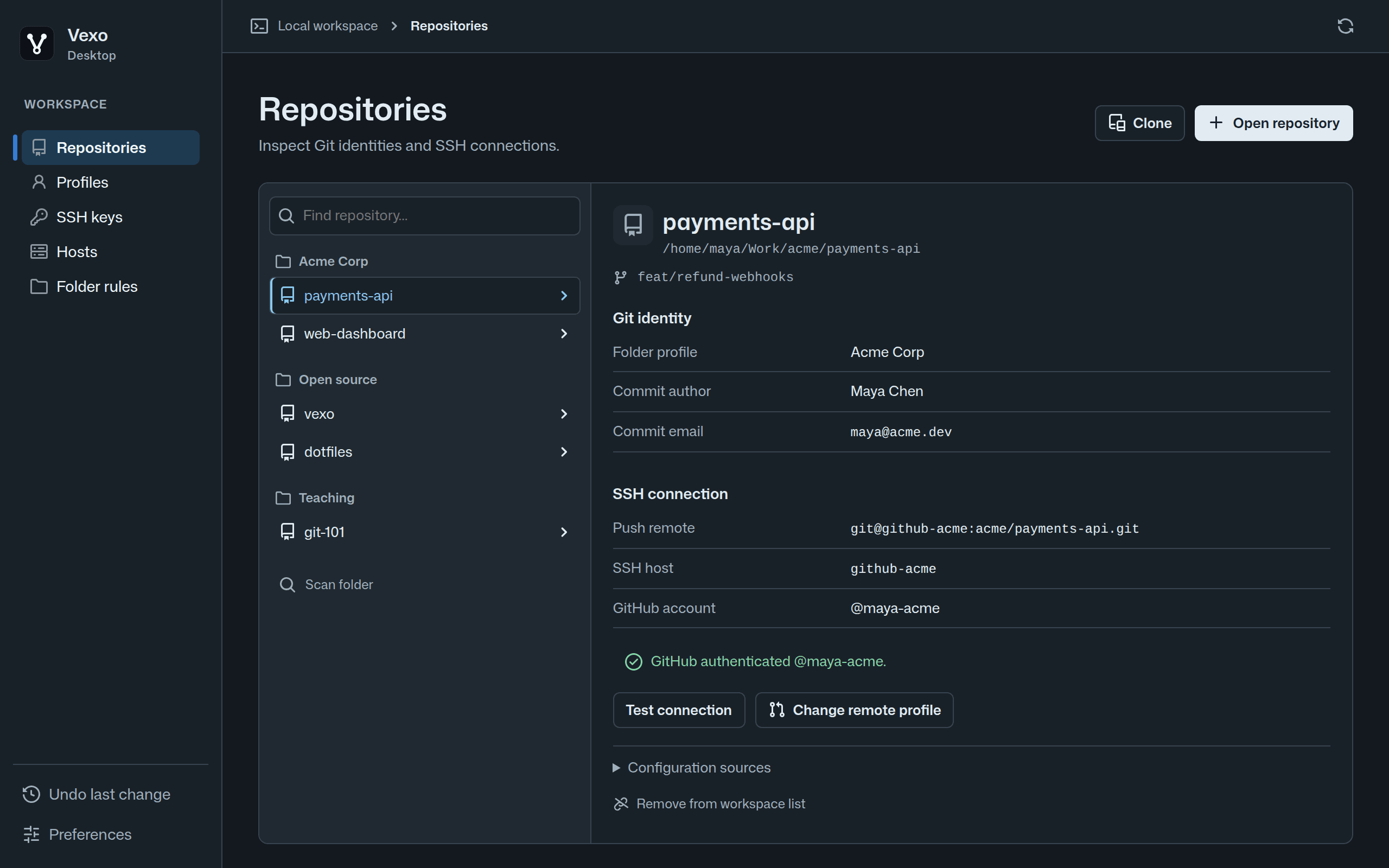
Two GitHub accounts on one laptop usually means editing ~/.ssh/config by hand, guessing which key the agent offers, and finding out you committed with the wrong email after you pushed. Vexo makes it visible and fixable.
Features
Everything you need to juggle accounts
Built on the tools you already use: OpenSSH, Git and your SSH agent. No wrappers and no lock-in.
One profile per account
Bundle a GitHub username, commit author, email and SSH key into a profile for work, personal or client accounts.
Folder rules
Assign a folder to a profile once. Every repository inside it commits with the right name and email automatically.
Repository inspector
See the commit author, the SSH host and the GitHub account a repository will push with, and where each setting comes from.
One-click remote fix
Spot a repository pointing at the wrong account and preview the exact remote change before you apply it.
SSH key manager
Generate Ed25519 keys, copy public keys to GitHub, and load or unload them from your SSH agent.
Verified connections
Test a profile and confirm which GitHub account actually authenticates, not just that a connection works.
Product tour
See it in action
Know who you are before you push
Repositories are grouped by profile. Each shows its commit author and the GitHub account that answers for its remote.
Safe by design
Your config. Never a surprise.
Vexo edits the same files you would, but shows you every line first and lets you take it back.
Review before write
Every edit to your SSH or Git configuration is previewed as a diff first.
Undo last change
Restore the previous files in one click. Vexo checks for newer edits first.
Your config stays yours
Hand-written hosts are kept intact, and keys used by any host are protected from deletion.
Local only
No account, no cloud, no telemetry. Keys never leave your SSH folder.
How it works
Set up a second account in minutes
- 1
Create a profile
Add your work account, generate an Ed25519 key, and copy the public key to GitHub.
Host github-work HostName github.com IdentityFile ~/.ssh/id_ed25519_work - 2
Assign a folder
Point ~/Work at the profile. Repositories inside it commit as your work identity.
[includeIf "gitdir:~/Work/"] path = work.gitconfig - 3
Clone and push
Clone through Vexo and the right alias is set for you. Your personal setup keeps working as before.
git clone git@github-work:acme/api.git

Download Vexo
Version 0.1.1. Free for macOS, Windows and Linux. Requires Git and OpenSSH.
macOS
Open the .dmg and drag Vexo to Applications. On first launch, right-click Vexo and choose Open.
Windows
Run the installer. Needs Git for Windows; OpenSSH is built into Windows 10 and 11.
Linux
Install the .deb with apt, or make the AppImage executable and run it.
Ubuntu or Debian: install from the folder you downloaded it to.
sudo apt install ./Vexo_0.1.1_amd64.debLooking for an older version? See all releases.
Questions
Will it change my existing GitHub setup?
No. Vexo only reads your configuration until you apply a reviewed change. Your default github.com host, personal email and existing repositories keep working.
Can I keep cloning over HTTPS?
Yes. HTTPS uses tokens, not SSH, and Vexo never touches your credentials. Many people keep their personal account on HTTPS and use profiles for the others.
What does it write to disk?
An included SSH hosts file, a short Include at the top of ~/.ssh/config, and a Git include for folder rules. Each is shown as a diff before it is written.
Which platforms are supported?
macOS 11 or newer (Apple Silicon and Intel), Windows 10 and 11 (64-bit), and Linux as a .deb for Ubuntu and Debian or an AppImage for other distributions.
Why does my computer warn me when I open it?
Vexo is free and open source, and it is not registered with Apple or Microsoft yet, so your computer asks you to confirm the first time. On macOS, right-click Vexo in Applications and choose Open. On Windows, choose More info, then Run anyway. You only need to do this once.